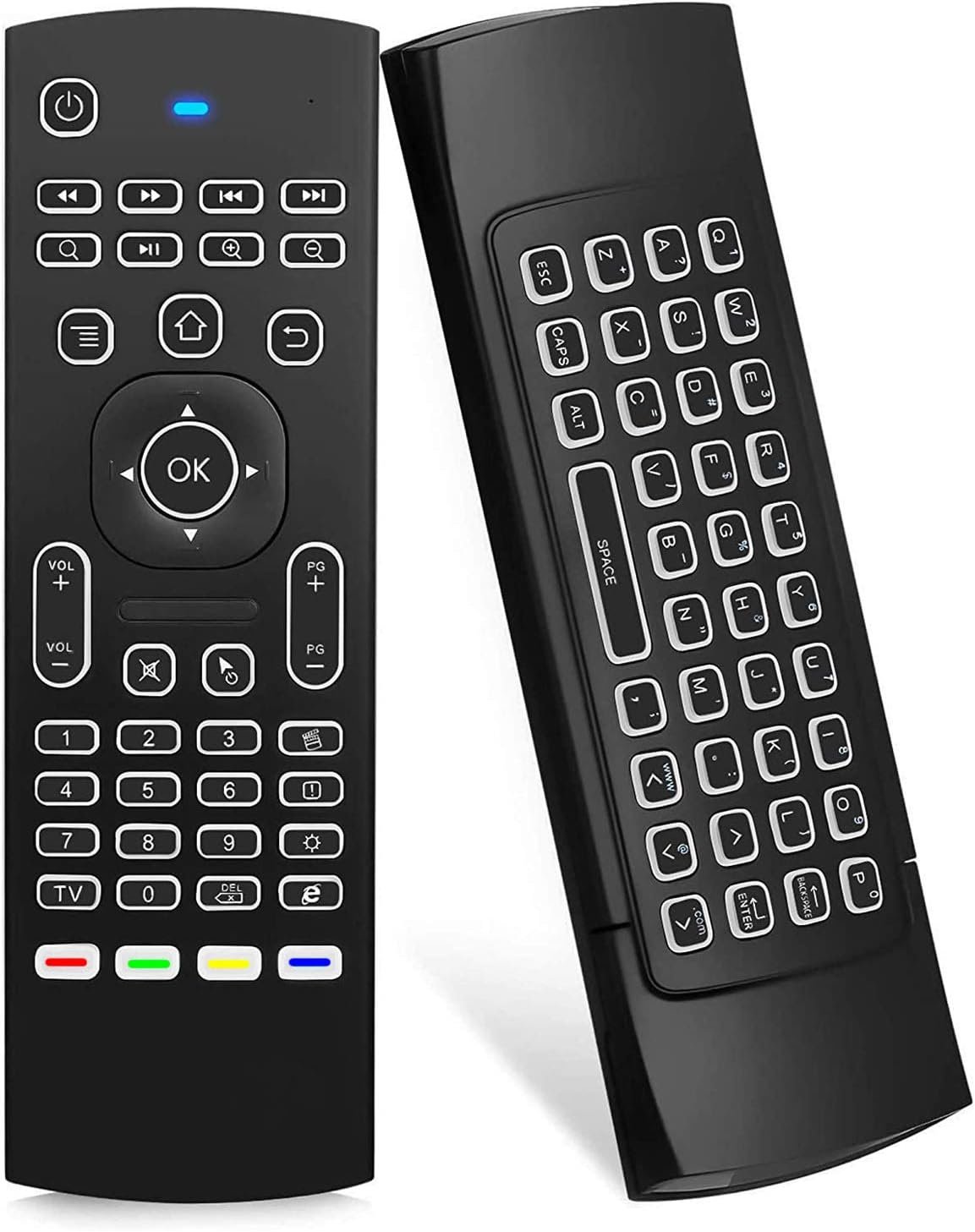
We all use multiple remote controls for various devices, such as smart TVs, laptops, and other gadgets. Many people, including myself, are unaware of this existence, despite it having been in circulation for several years. The MX3 Air Mouse remote with backlit screen is a versatile gadget accessory that serves as both a laptop mouse and a smart TV remote. Without further ado, let’s take a look at my product review of the MX3 Air Mouse remote with backlight.
Product Description
The MX3 Air Mouse remote with backlighting, designed for use with Android devices and PCs, is a universal remote control that features a keyboard on the bottom. When you hold the button, the remote directs the cursor to the specified location. The mouse pointer moves automatically when you point at an icon with your hand. Due to their ease of use and lack of a touchpad, Air Mouse remotes are incredibly popular.
The package includes the MX3 Pro remote control, instructions, and a USB dongle. The buttons on the main side of the universal remote control are standard. When necessary, you can type text using the keyboard on the opposite side. It requires two AAA batteries, but does not come with them. I tested it on an Android TV box initially.
Simply connecting to the USB dongle makes setup simple. The Android TV box functioned flawlessly. Moving around and entering text as necessary, including with Kodi, was not a problem for me. Upon plugging in the USB dongle, the Windows 10 laptop began to function immediately after the drivers had loaded automatically. There’s little doubt that it will work with many more gadgets that have USB ports to which you can attach the dongle.
How to Set Up
To make it easier for you, below are the steps to set up your MX3 Air Mouse remote with backlight.
- Make sure the TV remote supports the NEC protocol. Pressing any button causes the red LED to blink, confirming the correct placement of the batteries.
- Make sure there is less than 0.1 feet between the TV remote and the air mouse remote’s heads (infrared emitters) as you aim them at each other.
- The red LED on the Air Mouse Remote will blink quickly when you press and hold the TV button for three to five seconds. Then, release the TV button. The red LED will gradually flash. This means that the Air Mouse remote control is in the mode known as infrared learning.
- To keep the red LED on the Air Mouse remote from going out, press the TV remote’s Power button.
- On the Air Mouse remote, press either the power button or one of the four color buttons. Once more, the red LED will blink gently to signify that learning was successful.
- To get out of IR learning mode, press the TV button on the Air Mouse remote control.
The MX3 Air Mouse remote with backlight is a good, affordable smart device that performs well and fulfills its intended purpose. Using it on a Windows 10 laptop or an Android TV box didn’t cause me any issues. Once I plugged the USB dongle into a port, it functioned without requiring any driver loading or other issues. Although many people enjoy using air mouse remote controllers, some people would rather use a touchpad. For those who prefer using a touchpad, there are numerous controllers available that incorporate this feature.